---
updatedAt: 2026-09-10T12:02:53.000Z
agentTools:
projectIndex: https://docs.akeyless.io/llms.txt
---
# Portal Login and Target Discovery
Use this page to sign in to the Secure Remote Access (SRA) portal and discover authorized targets by type.
The Secure Remote Access Portal is available through the main console at `http://Your-Akeyless-Gateway-URL:8000/sra/portal` or through the public SaaS console at `https://zerotrust.akeyless.io`.
All Akeyless-supported [resource types](https://docs.akeyless.io/docs/sra-resource-types) can be accessed using the **SRA Portal**, [CLI](https://docs.akeyless.io/docs/cli), or the [Desktop Application](https://docs.akeyless.io/docs/sra-desktop-application).
**Note**: If you are managing multiple Secure Remote Access sessions concurrently, your web browser might suspend background tabs to save system resources. As a result, inactive SRA connections may unexpectedly terminate when you navigate back to them.
Currently, the SRA Portal supports the following authentication methods:
* [SAML](https://docs.akeyless.io/docs/auth-with-saml)
* [OIDC](https://docs.akeyless.io/docs/auth-with-oidc)
* [Certificate](https://docs.akeyless.io/docs/auth-with-certificate)
* [LDAP](https://docs.akeyless.io/docs/auth-with-ldap)
### **Tip **
**(Allowed redirect URL):** If you are using SAML or OIDC auth methods, ensure your Gateway URL is trusted.
## Connect from the Secure Remote Access Portal
1. Open the SRA Portal: `http://Your-Akeyless-Gateway-URL:8000/sra/portal`
2. Select the relevant authentication method. The default is **SAML**. Enter your SAML **Access ID**, or choose a different method.
3. If you are also working with [Zero Trust Web Access](https://docs.akeyless.io/docs/sra-web-access-on-k8s), set the **Web Application Dispatcher** with the external URL of your dispatcher service on port `9000`. If you are working with Secure Proxy, also set the **Web Proxy URL** using port `19414`. For instructions on how to retrieve these URLs from your cluster, see [Get the Dispatcher Service URL](https://docs.akeyless.io/docs/sra-web-access-on-k8s#get-the-dispatcher-service-url).
4. Click the **Generate SAML Bookmark URL** to create a link to the completed form. The link is copied to your clipboard for you to save in a convenient place, such as your browser bookmarks, and use in the future to automatically complete the login details.
5. Click **Sign in**.
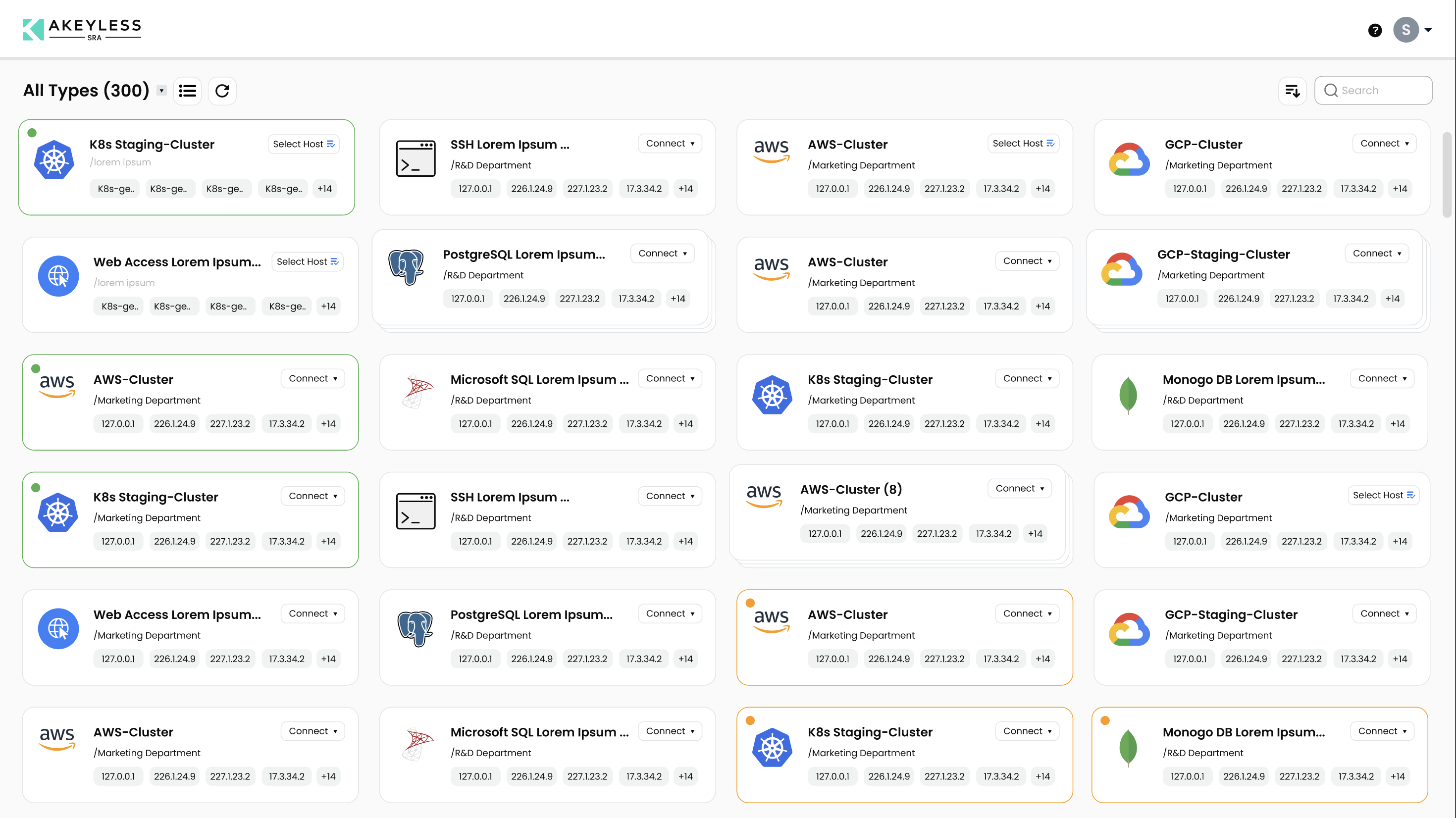
The portal shows all [resource types](https://docs.akeyless.io/docs/sra-resource-types) that your identity is authorized to access.
## Target Discovery in the Portal
After login, use the portal list view to discover targets by access mode and resource type.
Recommended discovery workflow:
1. Identify the relevant resource type (for example SSH, database, RDP, or web application).
2. Use portal search and visible filters to narrow large target inventories.
3. Launch directly when policy allows, or move to the request flow when approval is required.
For approval-gated flows, see [Request Access and Approval Flow](https://docs.akeyless.io/docs/sra-request-access-and-approval-flow).
## Access Request Flow
From Gateway `4.53.0` and later, the portal supports Secure Remote Access request flows, and approvers can process those requests through the Event Center.
Use this flow to track request progress and quickly identify whether an SRA access request still requires approver action.
For setup and permissions, see [Request Access](https://docs.akeyless.io/docs/request-access) and [RBAC](https://docs.akeyless.io/docs/rbac).
## Switch the Portal Theme
Use the theme switch button on the right side of the portal header to toggle between light and dark mode.
1. Open the Secure Remote Access Portal and sign in.
2. In the portal header, select **Switch to Dark mode** or **Switch to Light mode**.
3. The portal updates immediately after the switch.
## Clipboard Behavior for Long Text
Portal copy actions use browser clipboard APIs.
In the frontend implementation, copy operations call the browser clipboard API with a fallback copy method. The implementation does not define a fixed character limit for copied text.
For long text payloads in active SRA sessions, behavior can vary by browser and session components.
For large payload transfers, use file transfer workflows instead of clipboard copy and paste.
### Add a Custom Target for SSH or RDP
In addition to existing hosts that are part of the allowed hosts on the [SSH Cert Issuer](https://docs.akeyless.io/docs/sra-ssh), you can add new hostnames or IP addresses on the fly by using a matching SSH Cert Issuer that can provide access.
### **Key Features:**
- **On-the-Fly Connections**: Users can provide a hostname or IP address for **RDP** or **SSH** sessions as needed.
- **Temporary Host Addition**: Hostnames added through this feature are temporary and stored in the browser’s cache.
- **Edit** and **Delete** Capability: Users can edit or remove the last added host from the list.
1. In the SSH or RDP window, choose **Custom Target** and click the **+** button.
2. Select the **Permission Profile**. For example, [SSH Cert Issuer](https://docs.akeyless.io/docs/sra-ssh).
3. Enter **Hostname** or **IP Address**.
4. Select **Confirm**.
Users can **Edit** or **Delete** the last added host, and it will be removed from the list of hosts in the portal.