
Creating New Password
Select the blue + in the header and choose what to create.
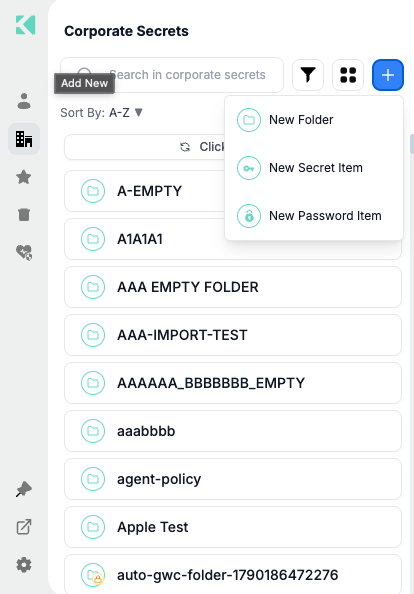
The create menu. Corporate offers three types; Personal adds New File Item
New Password Item
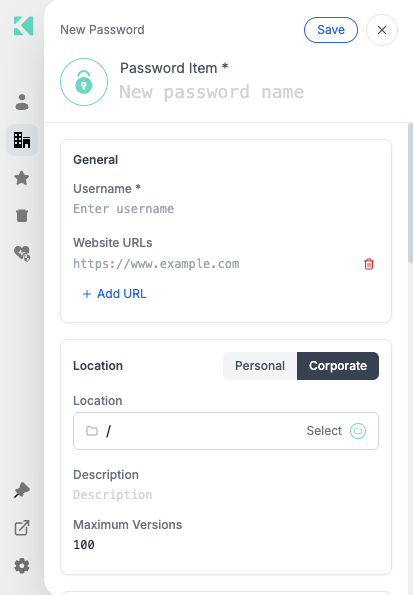
General, Location and the Personal / Corporate switch
General — Name, Username, and one or more Website URLs (https://www.example.com).
Select Add URL for additional addresses. These URLs drive autofill matching and the
Launch button.
Location — switch between Personal and Corporate, then pick the destination folder
with Select. Optionally set a Description and Maximum Versions (default 100).
Password — type one or generate it. See Password Generator & Strength.
Metadata — Protection Key (fixed if your account enforces an exclusive default key),
Tags, and Delete protection.
Custom Fields — select Add Field for each key/value pair.
Authenticator (OTP) — paste a Base32 secret, or use Scan otpauth QR from the current
website tab to read a QR code from the page you have open. Give it a label such as GitHub.
New Secret Item
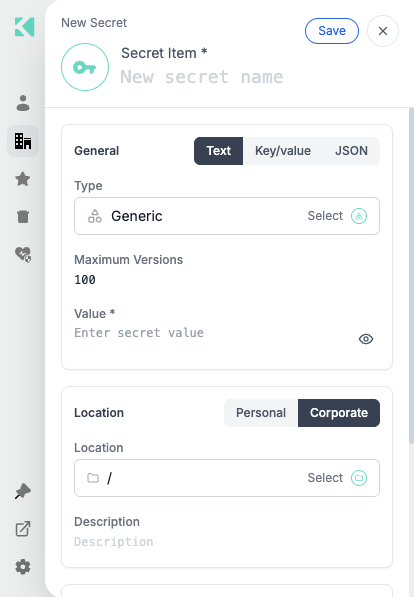
Text, Key/value and JSON formats, with a secret type and maximum versions
A static secret with a free-form value, plus the same Location, Metadata, Description and
Maximum Versions fields. Values may be plain text or structured key/value.
New File Item
Uploads a file into the vault. Files count against your account's file storage quota,
shown in Extension Settings.
New Folder
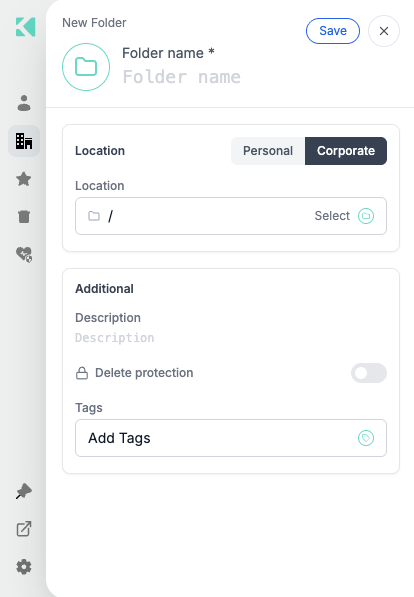
Location, description, delete protection and tags
Creates a folder at the location you choose, in Personal or Corporate.
Related
Updated 26 days ago