
Signing In to the Web Extension
The extension supports seven authentication methods. Which ones you see depends on what your
organization allows.
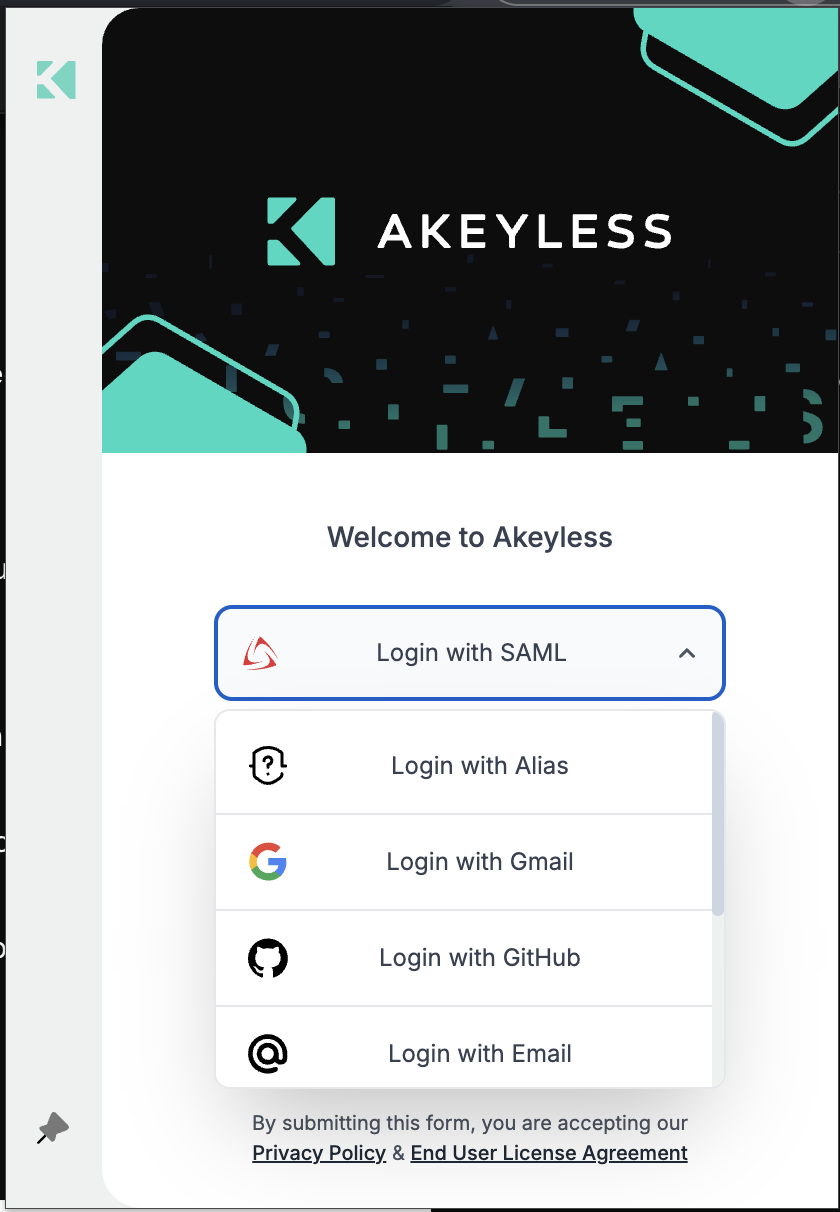
Choosing an authentication method
Authentication methods
| Method | What you enter | Where it takes you |
|---|---|---|
| Login with Alias | Your alias, typically containing a / such as team/you | Signs in directly. Default on Chrome, Edge and Firefox |
| Login with SAML | Your Access ID | Your identity provider opens in a new tab |
| Login with OIDC | Your Access ID | Your OIDC provider opens in a new tab |
| Login with Gmail | Nothing | Google OAuth starts immediately. Not offered on Safari |
| Login with GitHub | Nothing | GitHub OAuth starts immediately. Not offered on Safari |
| Login with Access ID | Access ID and Access Key | Signs in directly |
| Login with Email | Email and password, with optional account selection and 2FA | Default on Safari |
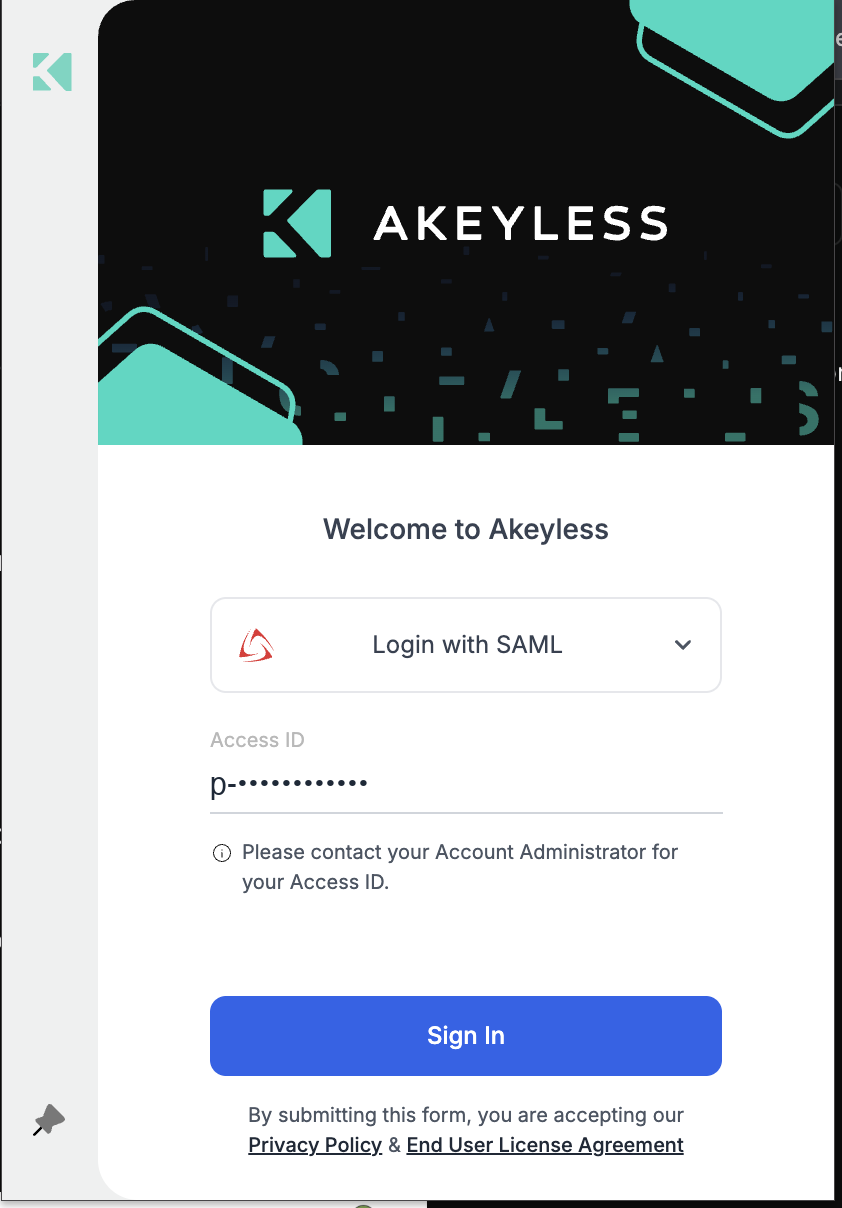
SAML sign-in with the Access ID filled
Where do I find my Access ID?
Contact your account administrator. If your organization used a preconfigured link or a
managed install, it is filled in for you and you may not see the field at all — see
Preconfigured Installs: Overview.
The extension remembers your last successful sign-in
You should not have to retype your Access ID every time. The extension keeps two separate
records, both stored locally in the browser, and both written only after a sign-in
succeeds — a failed attempt changes nothing.
1. Last used method and Access ID
On a successful sign-in the extension records:
| Recorded | Used for |
|---|---|
| The authentication method you used | Reopening the sign-in screen on that method |
| The Access ID or alias you used | Pre-filling the field |
| The same, per method | Switching methods restores the Access ID you last used with that method |
| A timestamp per method | Ordering the history list |
So if you sign in with SAML using one Access ID and later with Alias using another, switching
between the two methods swaps the field to the right value each time, rather than clearing it.
2. Access ID history
Every successful sign-in is also appended to a history list, holding the Access ID, the
method, and when it happened. Select the Access ID field to open it.
| Behavior | Detail |
|---|---|
| Filtered by method | You only see Access IDs previously used with the method now selected |
| Ten most recent | Limited to the ten most recently used unique Access IDs |
| Most recent first | Ordered by when you last used each one |
| Counted | Repeats are grouped, with a count of how often each has been used |
| Alias-aware | Under Alias, only alias-shaped entries are listed — raw Access IDs are hidden |
| De-duplicated | Two sign-ins with the same details within ten seconds are recorded once |
When it does not apply
A preconfigured install takes priority. If your organization set a method and Access ID, the
extension uses those rather than your history, and may hide the picker entirely.On Safari, Google and GitHub are not available, so a remembered Google or GitHub sign-in
is not restored — the screen opens on Email instead.
Signing out does not clear either record, so you can sign back in without retyping. Both are
stored in your browser only, and never leave the device.
Email sign-in
Email— enter your address, select Continue.Account— if your address belongs to more than one Akeyless account, choose the account
ID, select Continue. This step is skipped when there is only one.Password— enter it, select Sign In.Two-factor— if your account requires MFA, a code is emailed to you. Enter it; a
resend option appears after a short cooldown.
Regions
Email sign-in needs the right region, chosen beside the email field:
| Region | Covers |
|---|---|
global | Default Akeyless SaaS |
us | United States |
eu | European Union |
wmt, cvs, dbk | Dedicated tenants |
If your install was preconfigured with a region, the picker is hidden and that region is used.
Regions for other methods
For Alias, SAML, OIDC and Access ID, the region is derived from the Access ID itself — a
tenant tag inside the ID selects the matching API, authentication and vault endpoints. There
is nothing to choose and nothing to get wrong.
Other sign-in controls
| Control | What it does |
|---|---|
| Show password (eye icon) | Reveals what you typed. Hidden when your account enforces secure paste |
| Open Web Console | Opens the Akeyless web console for your tenant |
| Pin to Side Panel / Open Sidebar | Docks the extension — see Side Panel & Sidebar |
| Privacy Policy, End User License Agreement | Your organization's URLs when configured |
Dark mode survives signing out — logging out does not reset your theme.
DBK tenants
On DBK tenants a one-time machine-to-machine disclaimer appears before your first sign-in.
Acknowledge it once; it is remembered.
Session expiry
The extension tracks your token's expiry and signs you out when the session ends. Token
lifetime is set by your account's authentication method — contact your administrator to
change it.
Related
Updated 21 days ago