
Side Panel & Sidebar
By default the extension opens as a popup that closes when you click elsewhere. Docking it
keeps it open beside the page, so you can read a credential and work with it at the same time.
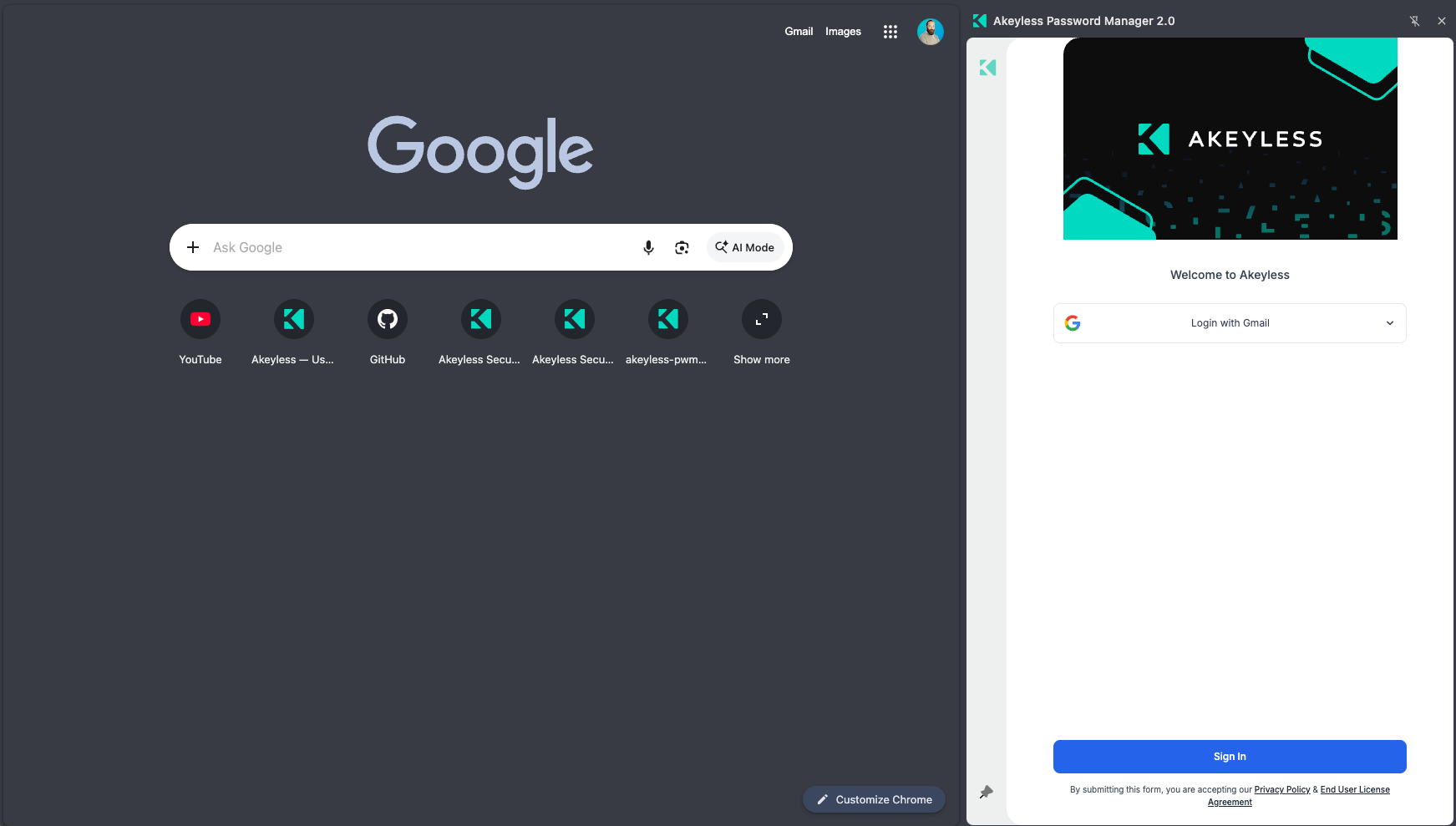
Docked in Chrome's side panel — the page stays usable alongside it
How to dock it
Select the pin icon at the bottom of the left rail. It is available on the sign-in screen
and on every screen after you sign in.
| Browser | Control reads | Underlying feature |
|---|---|---|
| Google Chrome | Pin to Side Panel | Chrome side panel |
| Microsoft Edge | Pin to Side Panel | Edge side panel |
| Mozilla Firefox | Open Sidebar | Firefox sidebar |
| Safari | not shown | Neither API exists — popup only |
The extension detects which is available and labels the control accordingly. On Safari the
control is hidden entirely rather than shown and failing.
What changes when docked
| Popup | Docked | |
|---|---|---|
| Stays open while you use the page | No | Yes |
| Width | Fixed, 416px | Resizable |
| Closes on click-away | Yes | No |
| Survives tab switches | No | Yes |
The extension detects which mode it is in and adapts its layout — lists get more room when
docked, and the sign-in screen spaces out rather than stretching.
Undocking
Close the side panel or sidebar with your browser's own control — the panel's close button in
Chrome and Edge, or the sidebar toggle in Firefox. The extension reverts to opening as a
popup from the toolbar icon.
If the pin does nothing
Docking must be triggered by a click, and it needs an ordinary web page to attach to. If the
only tab open is a browser-internal page —chrome://,edge://,about:or an extension
page — open a normal website first, then dock.
Related
Updated 21 days ago