
Getting Around the App
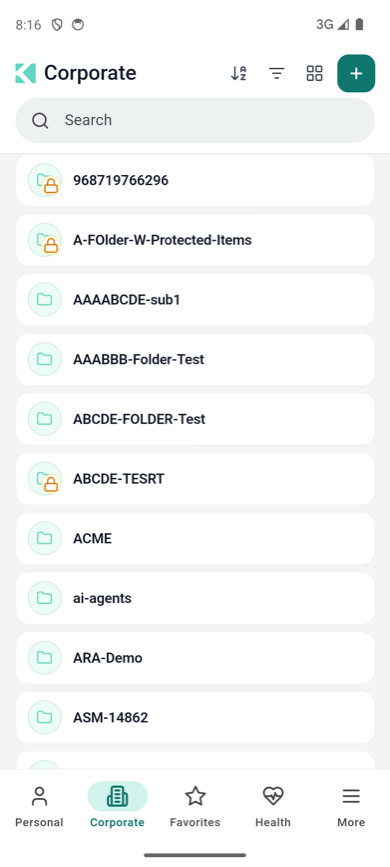
The header tools at the top, the tab bar at the bottom
The tab bar
The tab bar along the bottom of the screen takes you between the areas of your vault. It
shrinks while you scroll, to give the list more room.
| Tab | What it shows |
|---|---|
| Personal | Your own items, visible only to you — see Personal Secrets |
| Corporate | Items shared with you through your organization's access roles — see Corporate Secrets |
| Favorites | The items and folders you starred, from both areas — see Adding Items To Favorites |
| Health | The Security Health score for your personal passwords — see Security Health in the Extension |
| More | Opens a sheet with Recycle Bin, Settings and Web Console |
A tab is missing? Tabs follow your account. Personal and Health are hidden when
your account has no personal vault — including whenever you sign in with Access ID — and
Corporate is hidden when your access roles do not allow the corporate vault. Your
administrator controls both.
The More sheet
| Row | What it does |
|---|---|
| Recycle Bin | Deleted items, ready to restore or delete forever — see Recycle Bin |
| Settings | App settings and Sign out — see Mobile Settings |
| Web Console | Opens the Akeyless web console for your account |
Tap Cancel, tap outside the sheet, or drag it down to close it. Every bottom sheet in the
app closes the same way.
The header
Each area has a large title, a search field and a row of tools. Which tools appear depends on
the area — View and + only appear in Personal and Corporate:
| Tool | What it does |
|---|---|
| Sort | Toggles between A–Z and Z–A |
| Filter | Opens a filter sheet with Types, Tags and, on Favorites, Location (Personal or Corporate). A dot on the icon means a filter is on |
| View | Switches between Folder view and a flat list of every item — see Switching Between Folders & Flat View |
| + (Add New) | Creates a folder, secret, password or file — see Creating Items and Generating Passwords |
In the Recycle Bin, a trash icon in the header empties the bin.
Searching
Tap the Search field, type, and tap Search on the keyboard. The search runs across
the whole area, not only the folder you are in, and the results include both items and
folders — tap a folder in the results to open it. Tap ✕ to clear the search, or close it
to return to the list.
For what search matches, see
Searching for Passwords and Secrets.
Folders
In folder view, tap a folder to open it. A breadcrumb trail above the list shows where you
are:
- Tap the home icon to go back to the top of the area.
- Tap any folder in the trail to jump back to it.
- On a deep path, the middle folders collapse behind … — tap it to choose from the full
list. - Tap Back in the header to go up one level.
Folders with a lock badge are delete-protected.
Refreshing and scrolling
| Gesture | What it does |
|---|---|
| Pull down on the list | Reloads the current area from Akeyless |
| Back to top | A button that appears once you scroll down a long list. Tap it to jump to the top |
Related
Updated about 3 hours ago