
Creating Items and Generating Passwords
Creating an item
- Open Personal or Corporate. To create inside a folder, open that folder first.
- Tap + in the header.
- Choose what to create:
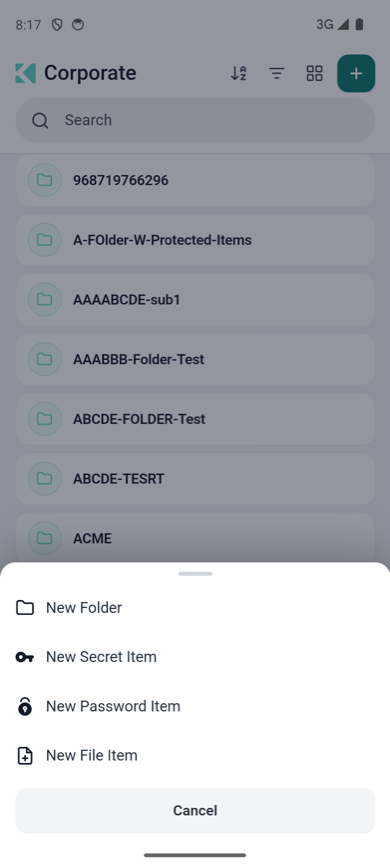
The create menu
| Option | Creates | Details |
|---|---|---|
| New Folder | A folder | Name, location, description, delete protection, tags |
| New Secret Item | A secret — free text, key/value pairs or JSON | Creating New Secret |
| New Password Item | A login: username, password, websites and an optional one-time password | Creating New Password |
| New File Item | A file uploaded from your phone | Creating New File Item |
- Fill in the form and tap Save at the top right. Tap ✕ to close without saving.
Saving into a corporate folder needs create permission there; if your access role does not
allow it, Akeyless rejects the save.
Creating a password item
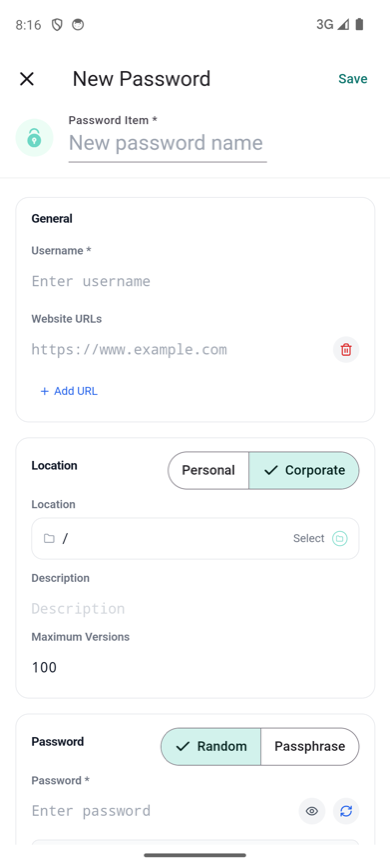
The New Password form
| Field | Notes |
|---|---|
| Password Item | The item's name, as it appears in the list. Required |
| Username | Required |
| Website URLs | The sites this login is for. Tap Add URL for more than one. AutoFill uses these to decide which logins to offer, so add the address of the sign-in page |
| Location | Personal or Corporate, then the folder. Tap Select to pick a folder |
| Description | Optional |
| Password | Type one, or generate one — see below |
| Authenticator (OTP) | Optional. Add a one-time password by scanning a QR code — see One-Time Passwords: Scanning a QR Code |
Logins for Android apps. To fill a login inside an Android app rather than a website,
add a website URL of the formandroidapp://followed by the app's package name — for
exampleandroidapp://com.example.app. See
AutoFill on iPhone and Android.
Generating a password
In the Password section:
- Choose Random for a string of characters, or Passphrase for a set of words.
- Tap the refresh icon beside the password field to generate one. Tap it again for a new
one. - Tap the eye icon to see what was generated.
The strength meter rates whatever is in the field, whether you generated it or typed it, and
the generation settings let you set the length, the character types and exactly which symbols
are allowed — useful for sites with strict password rules.
The check against known leaked passwords runs on your phone. Your password is never sent
anywhere to be checked.
See Password Generator & Strength
for every setting and how strength is scored.
Editing an item
Swipe the item left, tap More, then Edit. The edit form is the same as the create
form. See Editing, Copying & Moving Items.
Your organization can set a password policy that new passwords must meet — see
Setting Password Policy On Account Level.
Importing
Importing from another password manager is not available in the mobile app. Use the
web extension or the
web console — imported items appear on
your phone the next time the list refreshes.
Related
Updated about 3 hours ago