
Creating Items
Select + Create in the top toolbar and choose what to make.
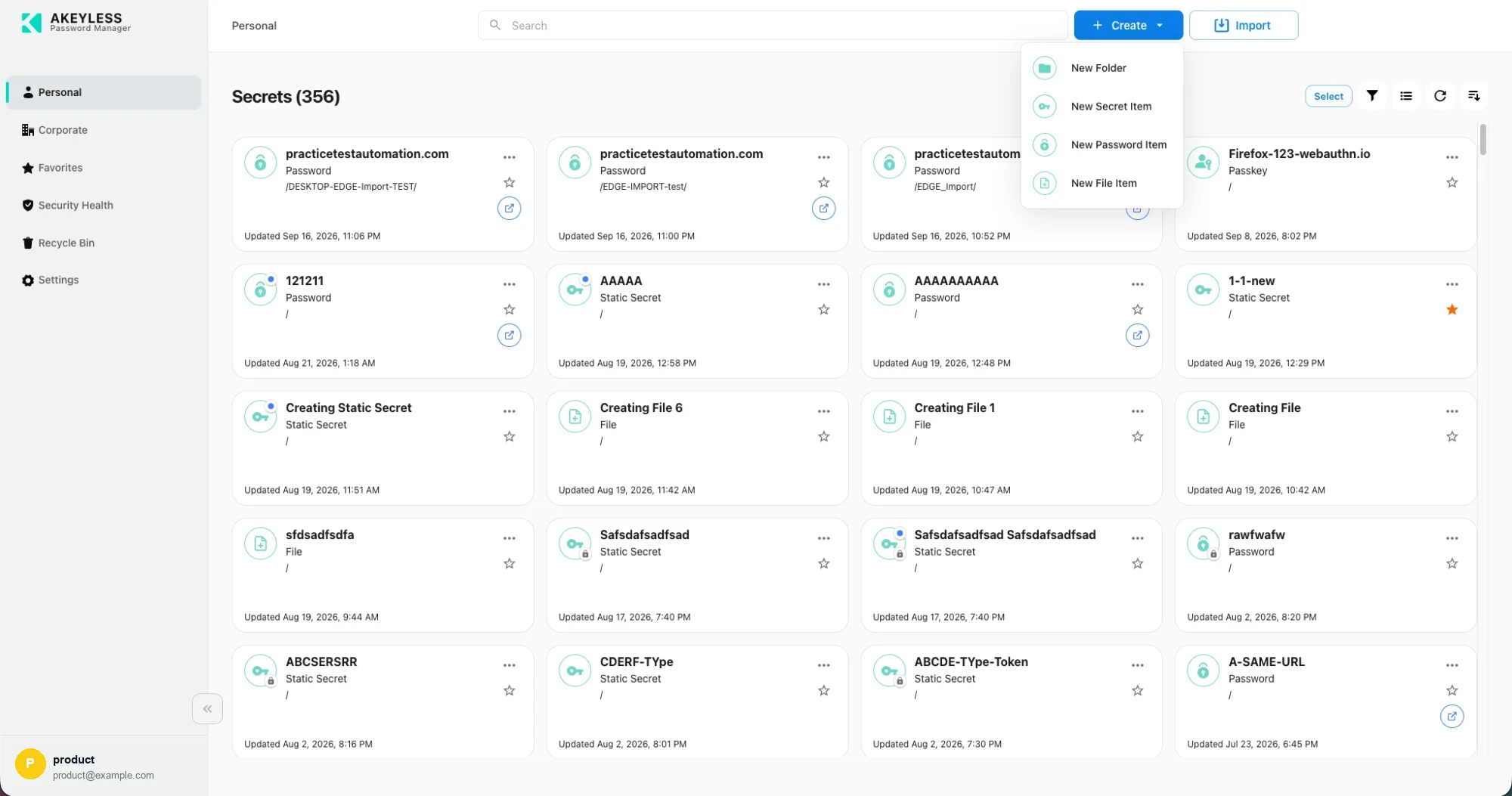
New Folder, New Secret Item, New Password Item, New File Item
New File Item appears in Personal only. Files are personal-vault items; the Corporate
create menu offers three options rather than four.
Creation flows are stepped wizards with a progress rail on the left, so a long form is
broken into stages you can move back and forth through. The step you are on is named in the
subtitle.
New Password
Three steps.
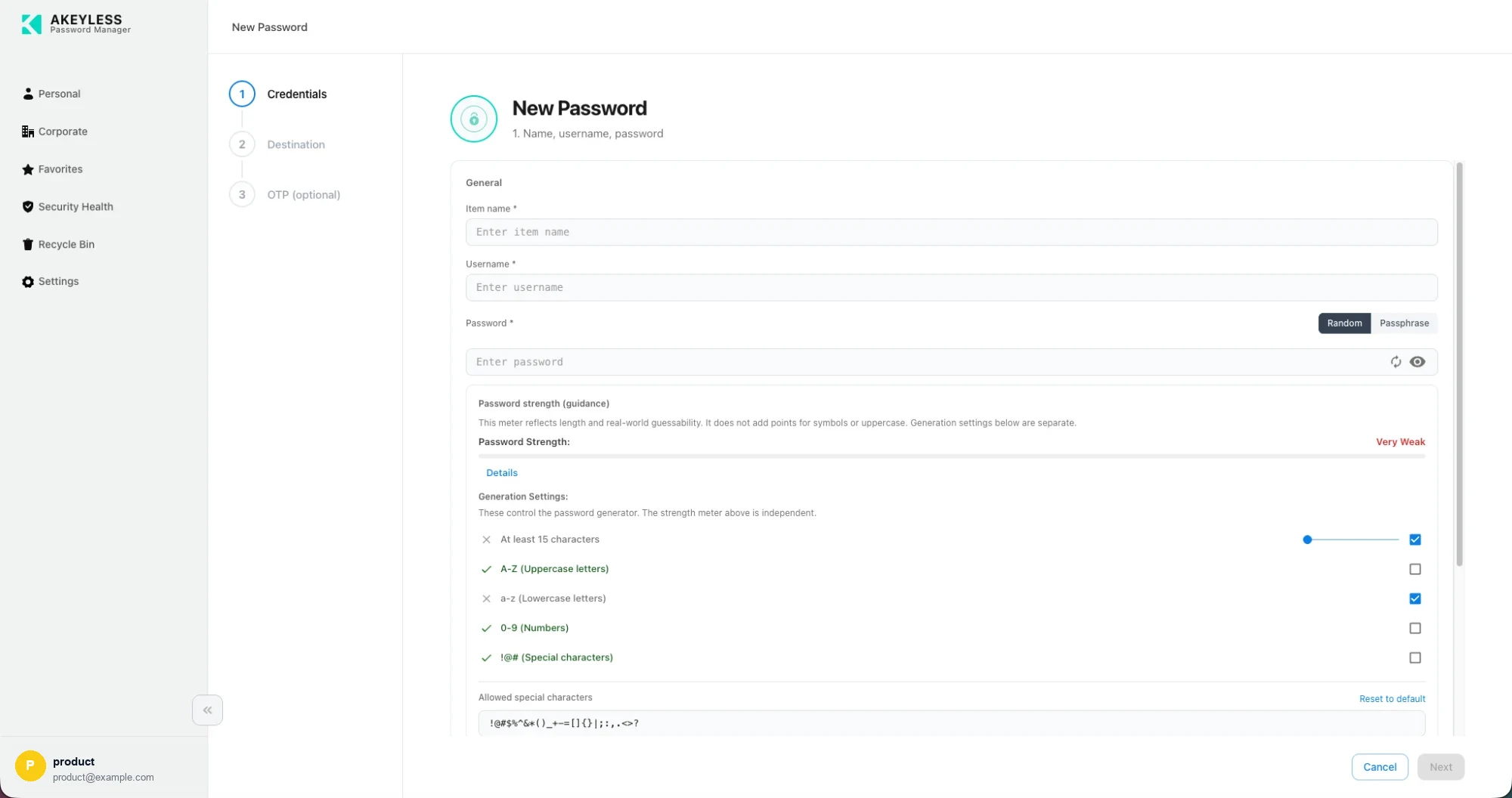
Step 1 — name, username, password
Step 1 — Name, username, password
| Field | Notes |
|---|---|
Item name | Required |
Username | Required |
Password | Required. Random or Passphrase generator, a refresh control, and a reveal eye |
Password strength (guidance) rates what is in the field:
This meter reflects length and real-world guessability. It does not add points for symbols
or uppercase. Generation settings below are separate.
Details expands the reasoning behind the rating.
Generation Settings control the generator, not the meter:
| Setting | Controls |
|---|---|
| At least N characters | Minimum length, set with the slider |
| A-Z, a-z, 0-9, !@# | Which character classes to include |
| Allowed special characters | Exactly which symbols may be used, with Reset to default |
Each requirement shows a tick or cross against the current value.
The meter and the settings are independent. Ticking every box does not make a weak
password strong —Password1!satisfies all of them and still rates Very Weak, because
it is among the first an attacker tries.
Step 2 — Location, protection key, tags & details
Destination vault (Personal or Corporate), Folder path, Protection Key, Tags,
Description, Delete protection and Maximum Versions.
When copying an existing item this step is headed Copy to.
Step 3 — OTP (optional)
Add an authenticator so the console and extension generate your six-digit codes. Skippable.
New Secret
Two steps.
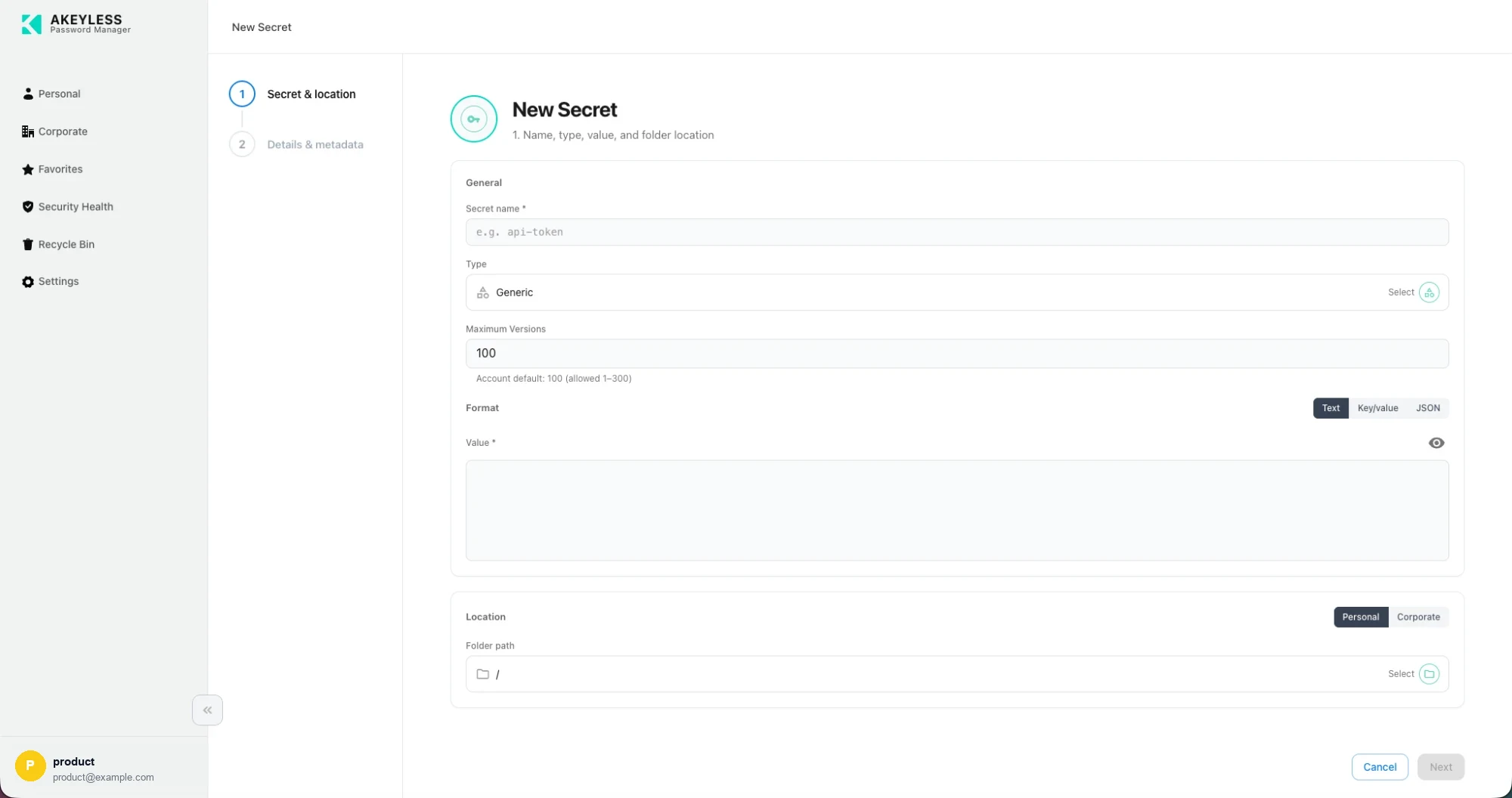
Step 1 — name, type, value, and folder location
Step 1 — Name, type, value, and folder location
| Field | Notes |
|---|---|
Secret name | Required |
Type | Generic by default; Select to choose a specific type |
Maximum Versions | Shows your account default and the allowed range, e.g. Account default: 100 (allowed 1–300) |
Format | Text, Key/value or JSON |
Value | Required, with a reveal eye |
Location | Personal or Corporate, then the folder path |
The three formats
| Format | Use when |
|---|---|
| Text | One value consumed whole — an API key, a connection string, a certificate body |
| Key/value | Several named values consumed separately — host, port, username, password |
| JSON | Nested structure, or a shape something downstream depends on |
Key/value and JSON reveal the value field by default, since structured content cannot be
edited blind. JSON is validated before saving.
Step 2 — Description, protection key, and tags
New File
A single step.
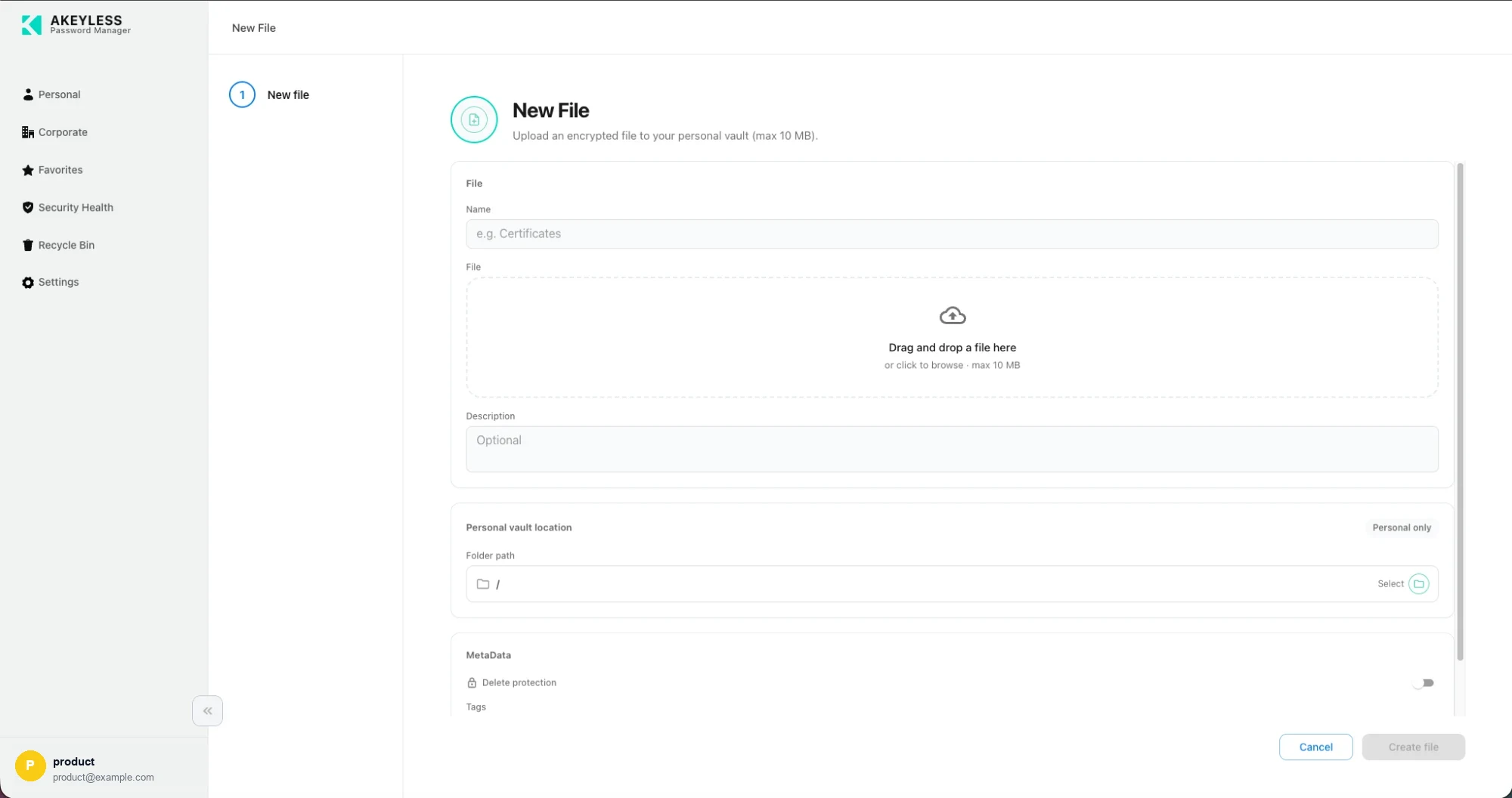
Upload an encrypted file to your personal vault
| Field | Notes |
|---|---|
Name | e.g. Certificates |
File | Drag and drop, or click to browse. Maximum 10 MB |
Description | Optional |
Personal vault location | Folder path. Marked Personal only |
Metadata | Delete protection, Tags |
Files are capped at 10 MB each and count against your account's file storage quota, which
is shared across the account. Check it in Settings before a large
upload.
New Folder
A single step.
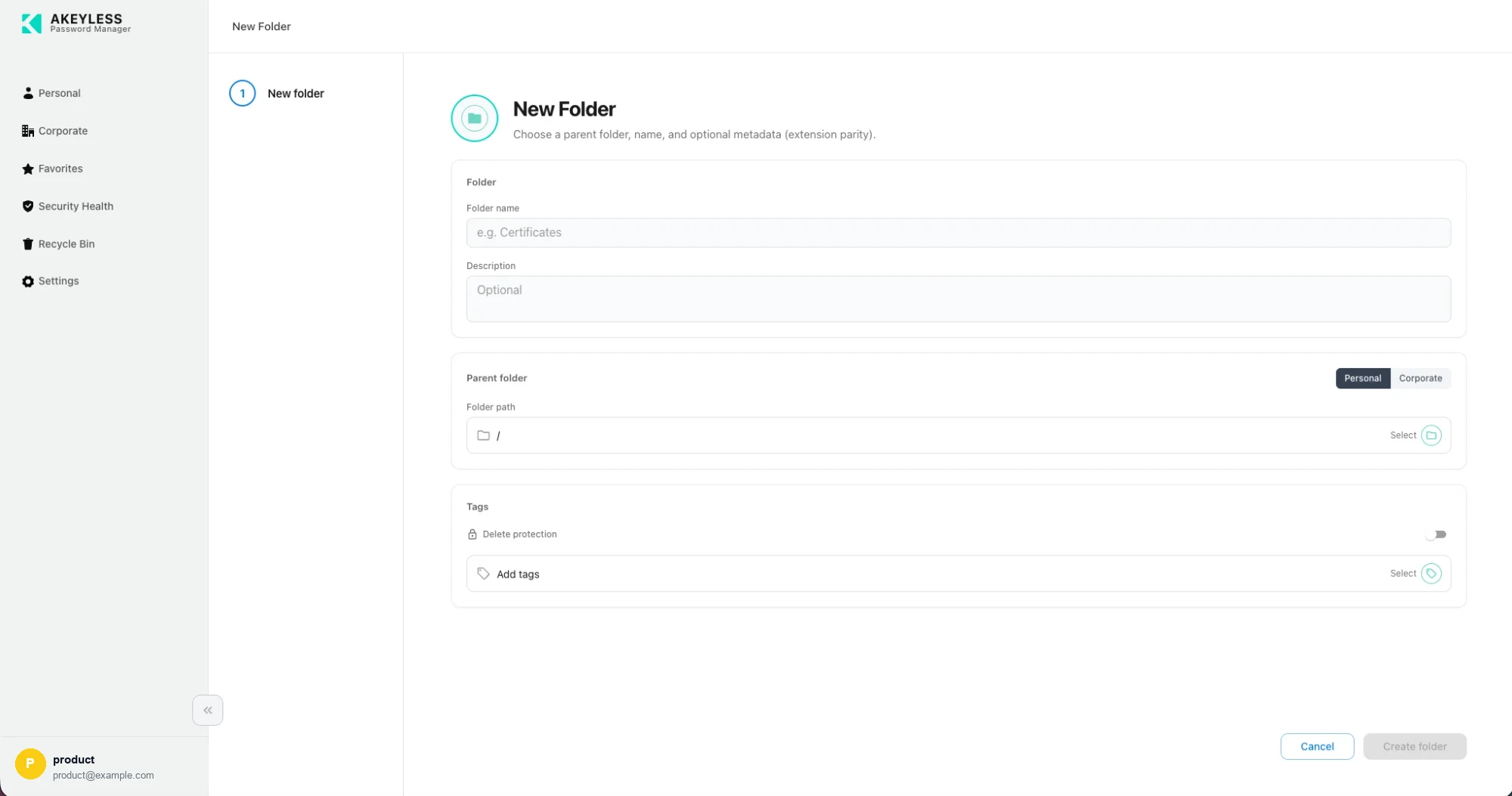
Name, description, parent folder and metadata
| Field | Notes |
|---|---|
Folder name | Required |
Description | Optional |
Parent folder | Personal or Corporate, then the path |
Delete protection | Prevents the folder and its contents being deleted |
Tags | Applied to the folder |
Common to every flow
| Element | Behavior |
|---|---|
| Step rail | Shows where you are; completed steps carry a tick |
| Cancel | Abandons the flow and returns you to the area you came from |
| Next / Save | Disabled until the current step validates |
| Location switch | Personal and Corporate side by side; Corporate is hidden where your permissions do not allow it |
Related
Updated 21 days ago