
Installing the Desktop Application
Download
From the app stores (recommended)
| Platform | Install |
|---|---|
| macOS | Akeyless PWM Desktop App on the Mac App Store — free, macOS 10.13 or later |
| Windows | Akeyless PWM Desktop App on the Microsoft Store — free |
Store installs update themselves, which is the main reason to prefer them.
Akeyless also publishes an SRA Desktop App for Secure Remote Access. That is a different
product. Make sure the listing says PWM, not SRA, before installing.
Direct download
The console's downloads page carries every build with its release notes:
https://console-pwm.akeyless.io/artifacts →
Desktop app tab
| Platform | Build |
|---|---|
| macOS | Apple Silicon |
| Windows | x64 |
Expand a release to see what changed. The newest carries a LATEST badge, and older
versions stay listed so you can pin a known-good build or roll back.
The downloads page needs no sign-in, so you can send the link to someone before they have an
account, or to IT for a managed rollout.
Install
| Source | Steps |
|---|---|
| Mac App Store | Select Get, then open from Applications |
| Microsoft Store | Select Get, then launch from the Start menu |
| macOS direct download | Open the file and drag Akeyless Password Manager to Applications. First launch: right-click → Open if macOS asks |
| Windows direct download | Run the installer and follow the prompts |
Signing in
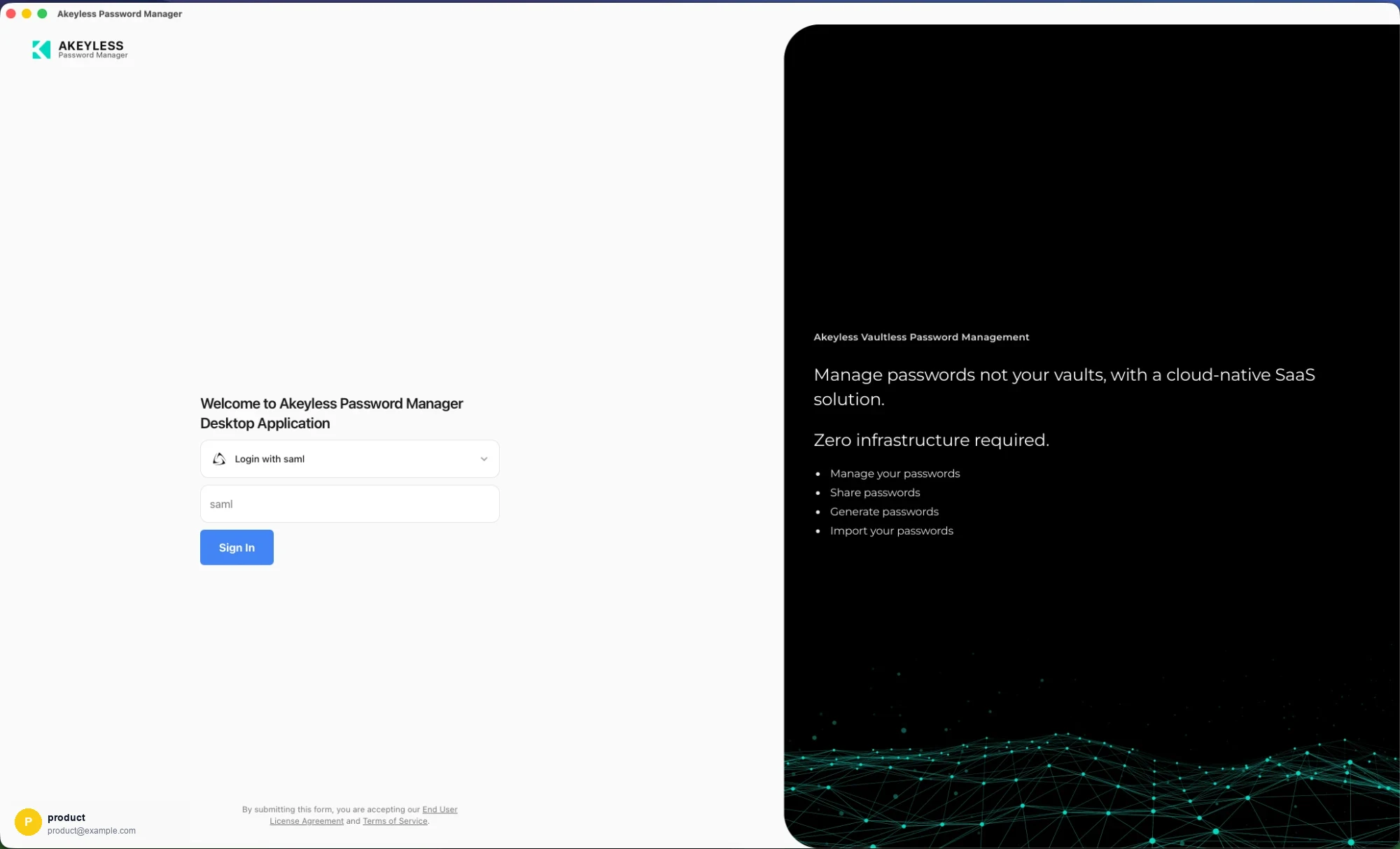
Welcome to Akeyless Password Manager Desktop Application
Choose your authentication method and sign in with the same credentials you use for the web
console and the browser extension:
| Method | What you enter |
|---|---|
| Alias | Your alias |
| SAML | Your Access ID — your identity provider opens |
| OIDC | Your Access ID — your OIDC provider opens |
| Gmail / GitHub | Nothing — OAuth starts immediately |
| Access ID | Access ID and Access Key |
| Email, password, and 2FA if your account requires it |
The app remembers the method and identifier you last used successfully, so you rarely retype
them.
After signing in
Two things are worth setting up immediately:
- Offline Mode — so your personal passwords survive a lost
connection. - Auto-Type — so you can fill credentials into desktop apps,
not just browsers. On macOS this needs an Accessibility permission.
Related
Updated 21 days ago