
Extension Settings
Open Settings with the gear icon at the bottom of the left rail. Everything here applies to
this browser on this machine — settings do not sync between devices.
The top of the screen shows the account you are signed in as: display name and email.
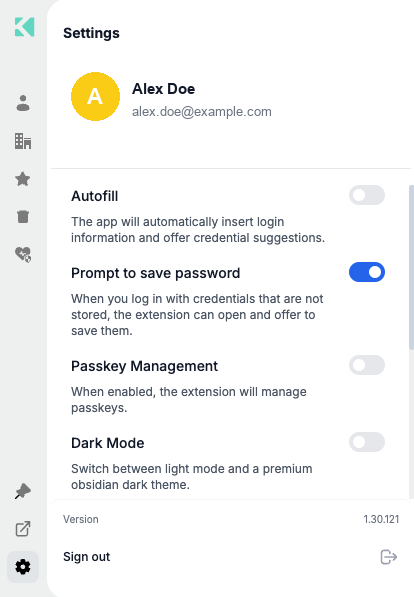
The four toggles at the top of Settings
Toggles
Autofill
The app will automatically insert login information and offer credential suggestions.
Controls whether the extension acts on web pages. With it on, an Akeyless icon appears
in username, email, password and OTP fields, and selecting it offers the vault credentials
matching that site.
| Property | Value |
|---|---|
| Default | Follows your account's allowAutoFill setting |
| Override | Changing it here overrides the account default permanently on this browser — the server value will no longer reset it |
| Turn it off if | You prefer to copy values manually, or another password manager is handling a site |
See Using Autofill / Password Injection.
Prompt to save password
When you log in with credentials that are not stored, the extension can open and offer to save them.
After you sign in to a site with credentials the vault does not hold, the extension opens and
offers to save them. It also detects password-change forms and offers to update the
existing item rather than create a duplicate.
| Property | Value |
|---|---|
| Default | On |
| Turn it off if | You create items manually and find the prompt intrusive |
Form submissions are watched only for this purpose. Guards prevent prompting on search boxes,
newsletter signups and other non-credential forms.
AI agent auto-fill
When Claude opens a sign-in page, fill the matching vault credential automatically.
Lets an AI browser agent complete a sign-in page without you pasting a password into a chat
window.
| Property | Value |
|---|---|
| Default | Off |
| Fills only when | All six guard rails hold — including that exactly one credential matches the host |
See AI Agent Autofill.
Passkey Management
When enabled, the extension will manage passkeys.
Makes the extension your WebAuthn authenticator, storing passkeys in your Akeyless vault so
they are available on every machine where you sign in, not stored on one device only.
| Property | Value |
|---|---|
| Default | Off, unless your organization preconfigured it on |
| Hidden when | Your account disables passkeys, or your organization suppresses them |
| Stored in | Your personal folder only — never team or corporate vaults |
See Passkey.
Dark Mode
Switches the interface between the light and dark themes.
| Property | Value |
|---|---|
| Default | Off (light) |
| Persists | Yes — stored locally, and survives signing out |
| Scope | This browser only |
| Hidden when | Your organization has applied custom branding |
Why the toggle sometimes disappears. When an organization configures brand colors, the
extension locks to light mode so the palette renders as intended, and the toggle is hidden.
This is a branding decision, not a fault — see
Branding & Customization.
Dark mode is applied to every surface: the vault lists, the item overlays, and the suggestion
popup injected into web pages.
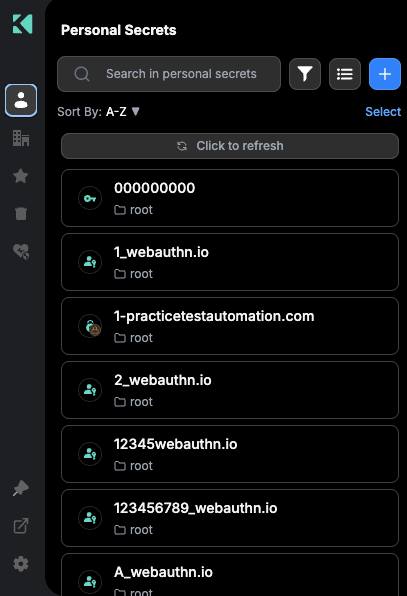
The Personal area with dark mode on
File storage
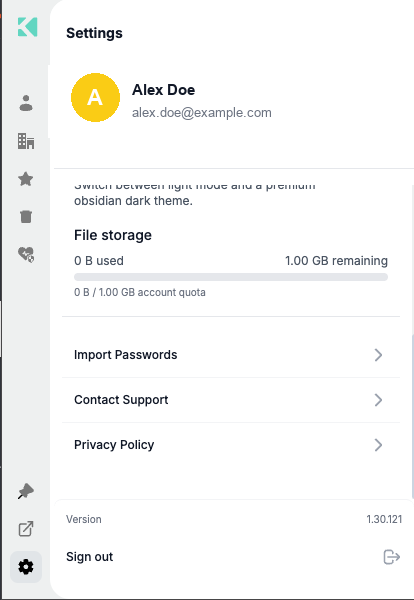
File storage, the links section, version and sign out
Shows how much of your account's file quota is used by file items:
| Reading | Meaning |
|---|---|
| N used | Consumed by file items |
| N remaining | What is left |
| Progress bar | The same figure visually |
| N / N account quota | Used against the total |
The quota is shared across the account, not allocated per user. Visible only when password
management is enabled on your account.
Links
| Link | Goes to |
|---|---|
| Import Passwords | The import flow — see CSV Password Importer |
| Export Passwords | Downloads your personal passwords as a CSV file — see Exporting Your Passwords. Greyed out when your account has no Personal area |
| Contact Support | Your organization's support channel when configured, otherwise Akeyless support |
| Privacy Policy | Your organization's policy when configured, otherwise the Akeyless policy |
Organizations set these through a preconfigured install — see
Branding & Customization.
Version and Sign out
The footer shows the installed Version — quote it when contacting support — and
Sign out.
Signing out clears your session but keeps your dark mode choice and your remembered sign-in
method and Access ID, so signing back in is quick. See
Signing In to the Web Extension.
Related
Updated 15 days ago