
Favorites
A single list of frequently used items, so they do not have to be located in Personal or
Corporate each time.
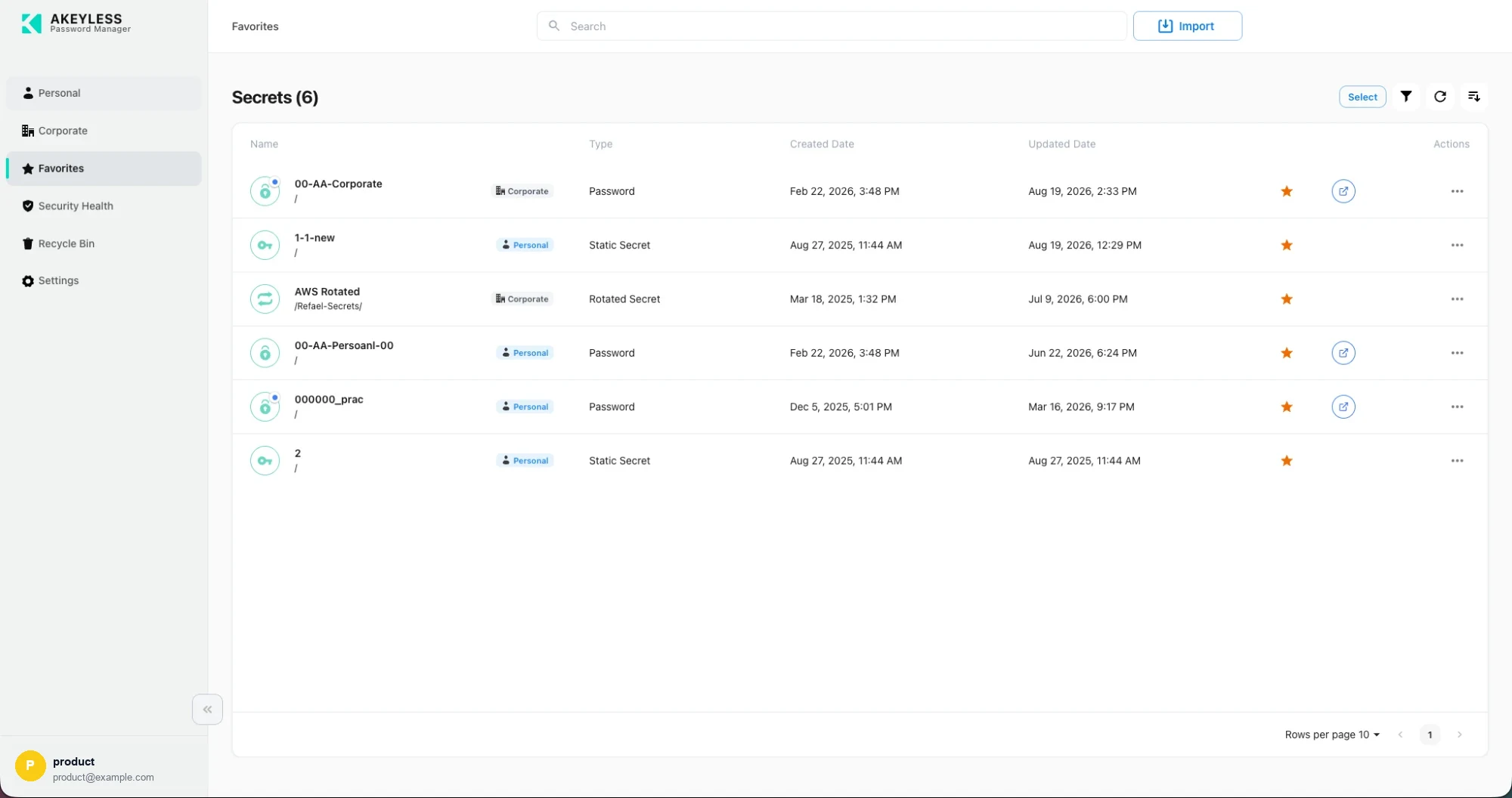
Favorites, mixing Personal and Corporate items
Adding and removing
Select the star on any row or card. Orange means favorited. Select it again to remove.
You can do this from Personal, Corporate, from search results, from Security Health, or from
the Favorites list itself. Multi-select's Add action favorites many items at once.
Favorites are stored on the server with your account, not in the browser. Sign in from
another machine, or from the browser extension, and the same favorites are there.
What the list shows
Favorites includes items from both vaults in one list — for example, a corporate AWS
credential and a personal test login.
| Column | Shows |
|---|---|
| Name | Item name with its path |
| Scope badge | Personal or Corporate |
| Type | Password, Static Secret, Rotated Secret, and so on |
| Created Date, Updated Date | Timestamps |
| Actions | The star, a launch button where applicable, and the ⋯ menu |
Folders can be favorited
Starring a folder adds the folder, not its contents. Opening it from Favorites opens
that folder in its original vault.
Star the folder rather than every item inside it when you work in one place repeatedly.
Controls
Favorites has the same toolbar as the other areas: search, type filter, view toggle, refresh,
sort and multi-select. See Viewing Options.
Favorites and permissions
A favorite is a reference, not a copy. If your access to a Corporate item is revoked, the
favorite stops resolving — the item was never duplicated into your personal vault.
Deleting an item removes it from Favorites. Restoring it from the Recycle Bin does not
re-apply the star.
Related
Updated 21 days ago